Is CAD Software CPU or GPU-intensive? (Latest Guide 2025)
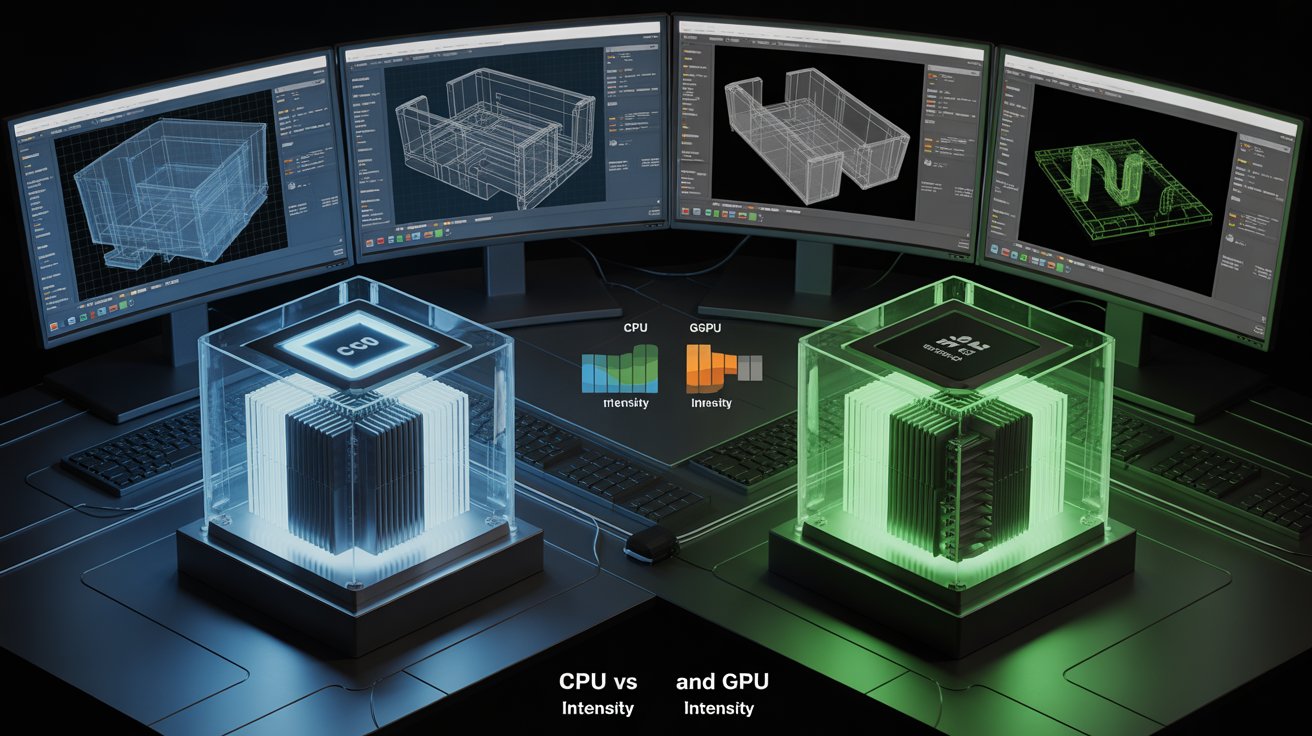
CAD software is CPU-intensive primarily for modelling, calculations, and file processing, while the GPU is used mainly for visual tasks like 3D rendering and real-time viewport performance. Both are important, but the CPU handles most core CAD work.
This article will guide you through how CAD uses both the CPU and GPU in practical scenarios.
How Does the CPU Handle CAD Software Workloads?
The CPU processes every instruction you give to the software. It calculates geometry, controls logic, and manages memory.
- Calculates shapes and dimensions
- Controls parametric changes
- Processes commands in real time
That is why a fast CPU gives instant feedback while you work.
Why Is Single-Core Performance Important in CAD?
Single-core performance is essential in CAD because most design and modelling tasks run on a single CPU core. A faster single core makes drawings, 3D modelling, and commands respond quicker, reducing lag and improving overall workflow speed.
When Is CAD Software More GPU Intensive?
CAD software becomes GPU-intensive when you work with heavy 3D visuals.
GPU-heavy tasks include:
- Rotating 3D parts
- Real-time shadows
- Lighting effects
- Texture rendering
How Does the GPU Handle CAD Software Workloads?
The GPU helps CAD software run smoother by handling heavy visual tasks like shading, lighting, and 3D model display. It frees the CPU from graphics work, so your viewport stays fast even in complex models. A strong GPU makes navigation, zooming, and rotating much smoother.
Key tasks the GPU handles in CAD:
- Real-time viewport rendering: GPU draws the model instantly as you move it.
- Shading & lighting: It handles colours, shadows, and material effects.
- Anti-aliasing: Smooths jagged edges for cleaner visuals.
- Handling large models: Improves stability and responsiveness with many parts.
Also Read: Is BRAW GPU Accelerated?
How Does Real-Time Viewport Rendering Use the GPU?
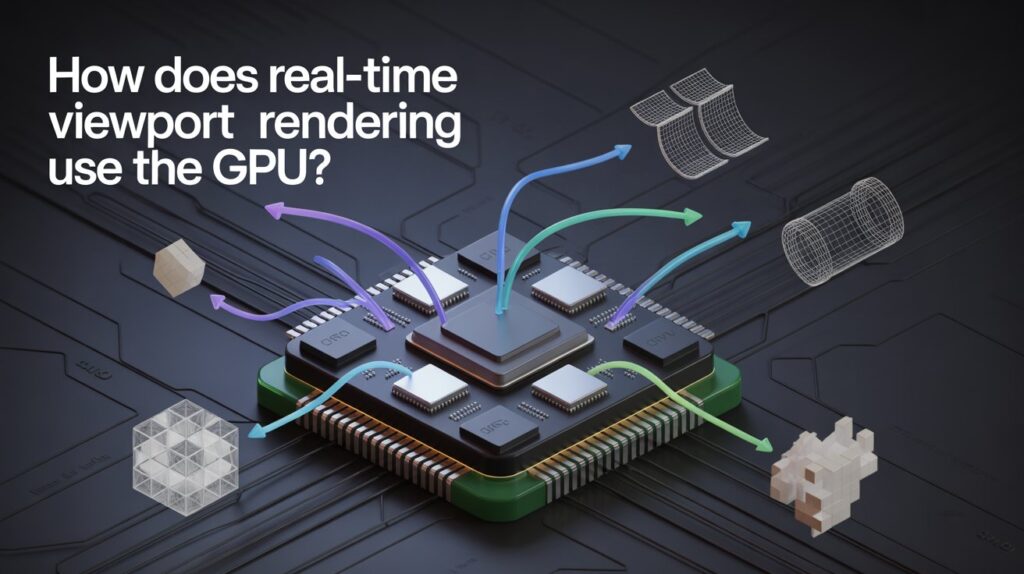
Real-time viewport rendering relies heavily on the GPU to display your 3D model instantly when you rotate, zoom, or pan. The GPU processes thousands of small calculations at once, making the viewport smooth and responsive even with detailed designs.:
How the GPU helps in real-time viewport rendering:
- Processes millions of polygons fast: Makes model movement fluid.
- Handles textures and materials: Shows realistic surfaces without slowing down.
- Manages lighting & shadows: Keeps visuals accurate during live movement.
- Supports high FPS: Ensures the viewport does not lag or stutter.
Also Read: What is NBody Calculation GPU?
Which CAD Software Is More CPU or GPU Intensive?
Different CAD programs use hardware in different ways. Some rely more on the CPU for calculations, while others depend on the GPU for smoother 3D visuals. Knowing which software uses what helps you choose the right PC parts.
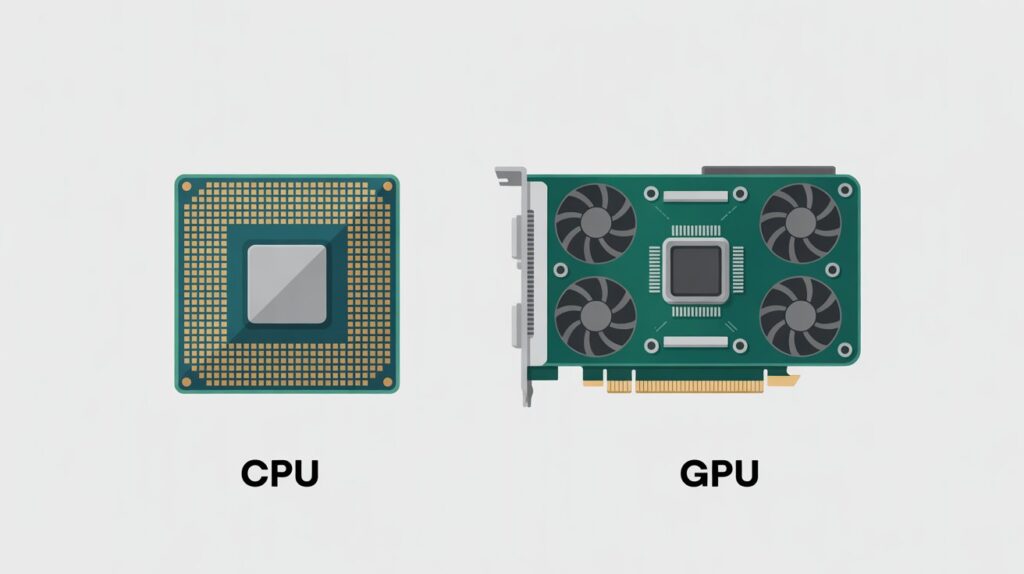
CPU vs GPU Usage:
| CAD Software | CPU Usage Level | GPU Usage Level | Primary Dependency |
| AutoCAD | High | Low–Medium | Mostly CPU |
| SolidWorks | High | Medium–High | CPU for modelling, GPU for the viewport |
| Revit | High | Medium | Mostly CPU |
| Fusion 360 | High | Medium | CPU-focused |
| CATIA | Medium–High | High | Balanced but GPU strong |
| Blender (CAD-like) | Medium | High | GPU-heavy |
- Most CAD tools depend on the CPU for modelling operations.
- GPU becomes important for 3D viewports, shading, and real-time previews.
- Simulation tasks (FEA, CFD) rely mainly on the CPU.
Is AutoCAD More CPU or GPU-intensive?
AutoCAD is mainly CPU-intensive, especially for 2D drafting and most 3D modelling tasks. The GPU helps only in visual tasks like viewport rotation and shading, but the CPU does almost all the heavy calculations.
- Single-core performance matters most for commands, drawing, and editing.
- Most tools don’t use the GPU deeply, except for visual styles.
- Large DWG files rely on CPU speed, not GPU power.
Is Solid Works More CPU or GPU-Intensive?
SolidWorks uses both the CPU and GPU, but in different areas. The CPU handles model features and calculations, while the GPU handles the viewport and RealView graphics. For everyday modelling, the CPU is more important, but for smooth 3D visuals, a certified GPU matters.
SolidWorks Hardware Dependency:
| Task Type | CPU Usage | GPU Usage | Main Hardware Needed |
| Feature modeling | High | Low | Fast single-core CPU |
| Large assemblies | High | Medium | Strong CPU |
| Viewport rotation | Medium | High | Certified GPU |
| RealView & shadows | Low | High | Workstation GPU |
- Single-core CPU speed impacts rebuild times the most.
- GPU is critical for RealView, shadows, and smooth 3D navigation.
- Large assemblies need a strong CPU + moderate GPU for stable performance.
Is Revit More CPU or GPU-Intensive?
Revit is mostly CPU-intensive, especially for modelling, project calculations, and regenerating views. The GPU helps only with viewport graphics and smooth navigation, but Revit still relies far more on strong single-core CPU performance.
Why Revit depends more on the CPU:
- Model updates and view changes run on the CPU, not the GPU.
- Large BIM projects need fast single-core speed for quick response times.
- GPU mainly improves 3D orbiting and visual styles, not calculations.
What Are the Best CPU Specifications for CAD Software?
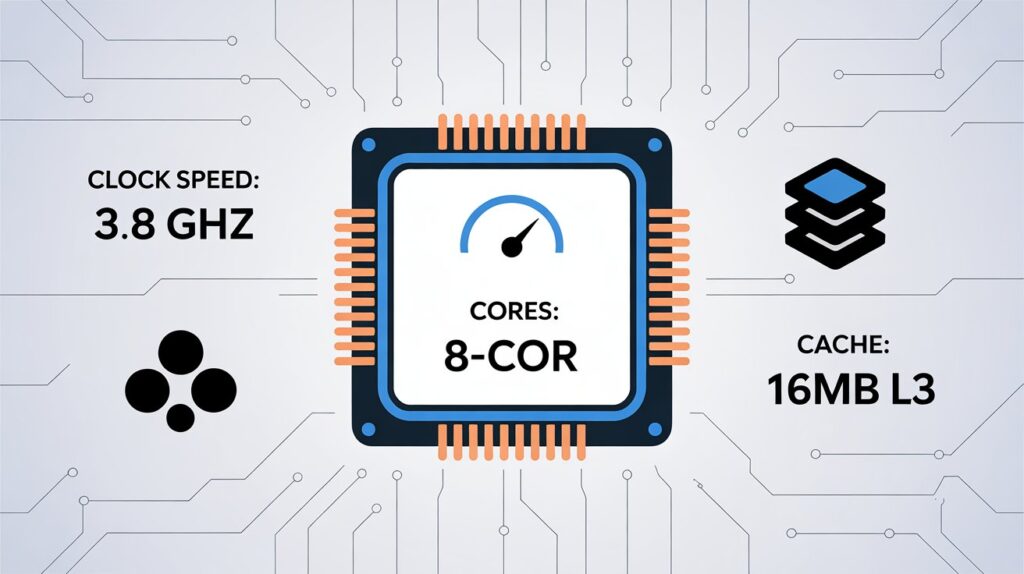
The CPU is the backbone of CAD performance. A fast processor ensures smooth modelling, quick file loading, and efficient calculations. For most CAD software, single-core speed matters more than core count, but having multiple cores helps with simulations and rendering.
| Specification | Recommendation | Reason |
| Clock Speed | 3.5 GHz or higher | Faster modelling & view updates |
| Cores/Threads | 4–12 cores (8+ threads ideal) | Handles multi-tasking & simulations |
| Cache | 8–16 MB L3 | Speeds up frequently used calculations |
| Architecture | Latest gen (Intel/AMD) | Better efficiency & lower power use |
| Thermal Design Power (TDP) | 65–125W | Balance performance and cooling |
- Single-core performance is king for most CAD tasks.
- Multi-core CPUs help in simulations, rendering, and large assemblies.
- Choose the latest generation CPUs for efficiency and future-proofing.
What Are the Best GPU Specifications for CAD Software?

A strong GPU ensures smooth viewport performance, realistic shading, and faster handling of large assemblies. While the CPU does most calculations, the GPU improves navigation, rendering previews, and visual effects.
| Specification | Recommendation | Reason |
| GPU Type | Workstation GPU (NVIDIA Quadro / AMD Radeon Pro) | Optimized for CAD applications |
| VRAM | 4–12 GB or more | Handles large 3D models and textures |
| Core Clock | High (1500 MHz+) | Faster viewport rendering |
| Display Outputs | Multiple (HDMI/DisplayPort) | Supports multi-monitor setups |
| Drivers | Certified CAD drivers | Stability & software compatibility |
- Workstation GPUs are preferred for stability and certified drivers.
- More VRAM helps with large assemblies and complex visualizations.
- GPU affects viewport smoothness, not the core modelling calculations.
How Does CAD Software Perform on Large Assemblies?
Large assemblies can slow down CAD software if the hardware is not strong enough. The CPU handles the calculations for each part, while the GPU manages viewport display. Optimized hardware and software settings keep performance smooth even with thousands of components.
Tips for handling large assemblies:
- Fast CPU: Single-core speed reduces rebuild and calculation times.
- Sufficient RAM: 32 GB or more prevents slowdowns.
- Certified GPU: Keeps viewport navigation smooth.
- Use lightweight representations: Display only necessary parts to reduce load.
- Software optimization: Update drivers and use assembly management tools.
How Can Windows Settings Improve CAD Performance?
Tweaking Windows settings can make CAD software run faster and smoother. Simple changes reduce background resource usage and allow more power for your CAD applications.
Windows settings that help CAD performance:
- Power Plan: Set to “High Performance” to maximize CPU and GPU output.
- Visual Effects: Turn off unnecessary animations and transparency.
- Startup Programs: Disable unneeded apps to free memory.
- Virtual Memory: Ensure enough paging file size for large assemblies.
- Display Settings: Use native resolution and multiple monitors carefully to avoid GPU overload.
How Can Software Tweaks Improve CAD Performance?
Adjusting CAD software settings can dramatically boost performance. By optimizing visual styles, caching, and file handling, you can reduce lag and speed up complex operations without upgrading hardware.
Key software tweaks for better CAD performance:
- Graphics settings: Enable hardware acceleration and adjust visual quality for smooth viewport navigation.
- File management: Use lightweight or simplified representations for large assemblies.
- Cache & temporary files: Clear regularly to prevent slowdowns.
- Templates & libraries: Keep them organized to reduce loading times.
- Disable unnecessary add-ins: Minimize background processing that slows the software.
Also Read: What Does GPU Bound Mean?
What Are the Most Common Myths About CAD CPU and GPU Usage?
Many users misunderstand how CAD software uses hardware. Believing in myths can lead to unnecessary upgrades or poor performance. Knowing the truth helps you invest in the right hardware and optimize your workflow.
- “A faster GPU will make modelling faster.” – GPU mainly affects the viewport, not calculations.
- “More cores always help CAD.” – Single-core speed matters more for most modelling tasks.
- “Any graphics card will do.” – Certified workstation GPUs improve stability and rendering.
- “Upgrading RAM alone fixes lag.” – RAM helps, but CPU and GPU balance are essential.
- “CAD is purely GPU-intensive.” – Most CAD operations rely on the CPU, not the GPU.
FAQ’s:
Can upgrading my GPU make CAD modelling faster?
No, GPU mainly improves viewport smoothness, not core modelling calculations.
Does SolidWorks need a certified GPU?
Yes, a certified GPU ensures smooth RealView graphics, shadows, and 3D navigation.
Is AutoCAD more CPU or GPU-intensive?
AutoCAD is mostly CPU-intensive; the GPU mainly helps with viewport rotation and shading.
What CPU specs are best for large CAD assemblies?
Fast single-core CPU with 4–12 cores and 8+ threads handles rebuilds and calculations efficiently.
How can Windows settings improve CAD performance?
Using the High Performance power plan, disabling animations, and optimizing virtual memory helps speed up CAD software.
Conclusion:
In CAD software, the CPU handles most modelling, calculations, and file tasks, while the GPU mainly improves viewport visuals and 3D rendering. A fast single-core CPU, sufficient RAM, and a certified GPU ensure smooth performance, especially for large assemblies. Optimizing settings further boosts speed and workflow efficiency.