Is BRAW GPU Accelerated? (2025 Performance Guide)
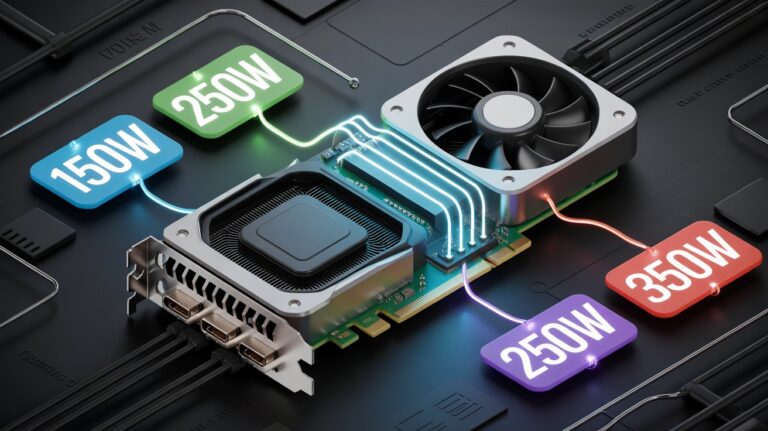
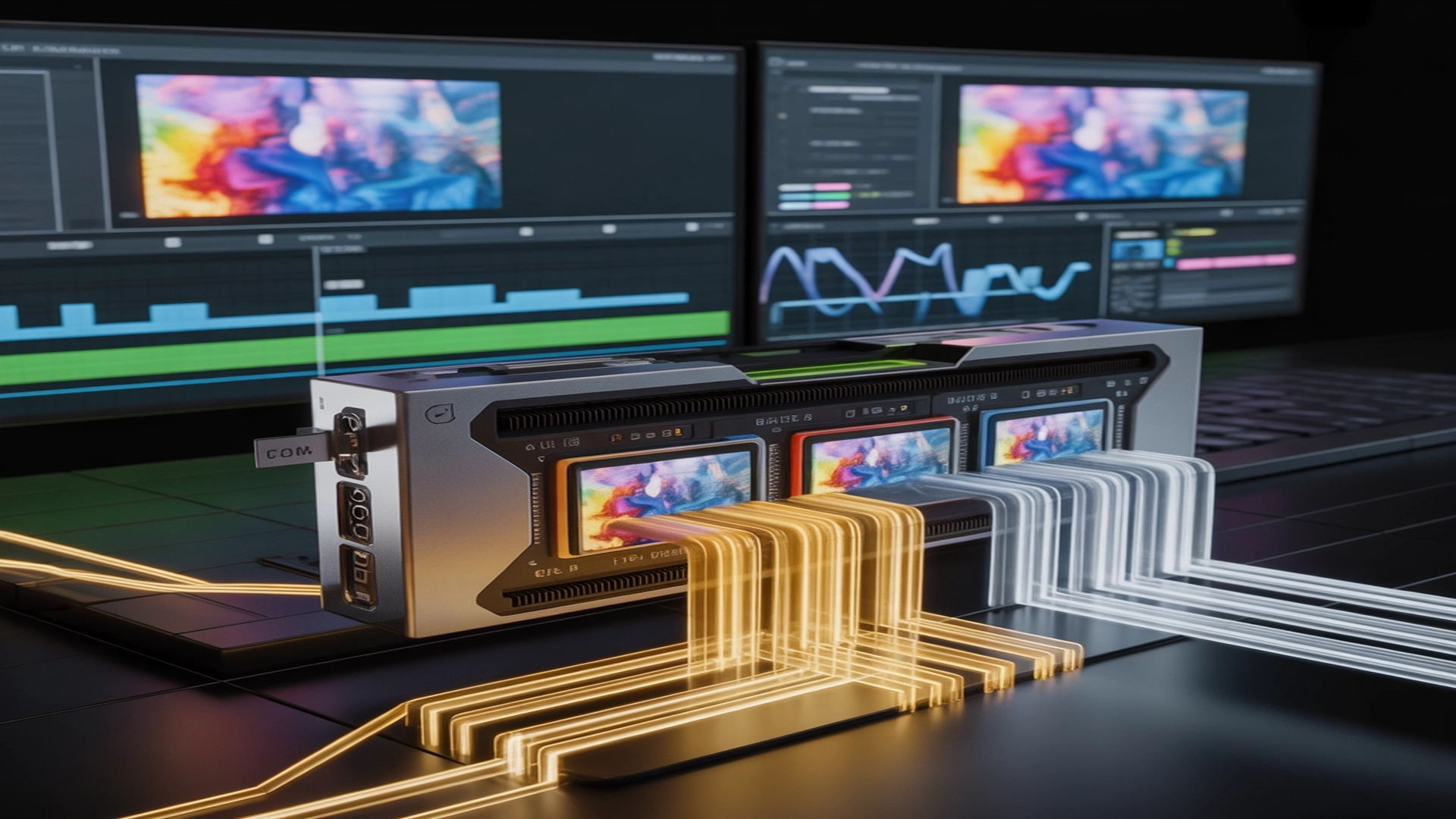
Yes, BRAW is GPU accelerated. Blackmagic RAW uses your graphics card to decode and process footage, making playback smoother and speeding up editing. With GPU acceleration, high-resolution videos like 4K, 6K, and 12K perform better, render faster, and put less load on the CPU.
This guide explains how GPU acceleration works with BRAW, its benefits, and how to optimise your system for better performance.
What Is BRAW GPU Acceleration?
BRAW GPU acceleration means your graphics card helps decode and process Blackmagic RAW footage instead of leaving everything to the CPU. This speeds up playback, colour grading, and rendering, especially for high-resolution videos like 4K, 6K, or 12K. In simple terms, the GPU handles the heavy visual work, so your computer runs smoothly and faster during editing.
What Are the Key Benefits of GPU Acceleration?

- Faster Playback: Timelines run smoother, even with colour grades or effects.
- Quicker Rendering: GPU power reduces export and preview times.
- Better Load Sharing: The GPU handles visuals while the CPU works on other tasks.
- Great for High Resolution: Ideal for 4K to 12K BRAW workflows.
How Does GPU Improve BRAW Playback?
Playback becomes smoother and faster when the GPU handles image decoding instead of the CPU. Scrubbing through high-resolution clips feels more responsive, and lag is reduced.
How the GPU Helps:
- Renders high-quality frames quickly
- Reduces playback stutter
- Speeds up colour grading
- Frees the CPU for other editing tasks
Does DaVinci Resolve Use GPU for BRAW?
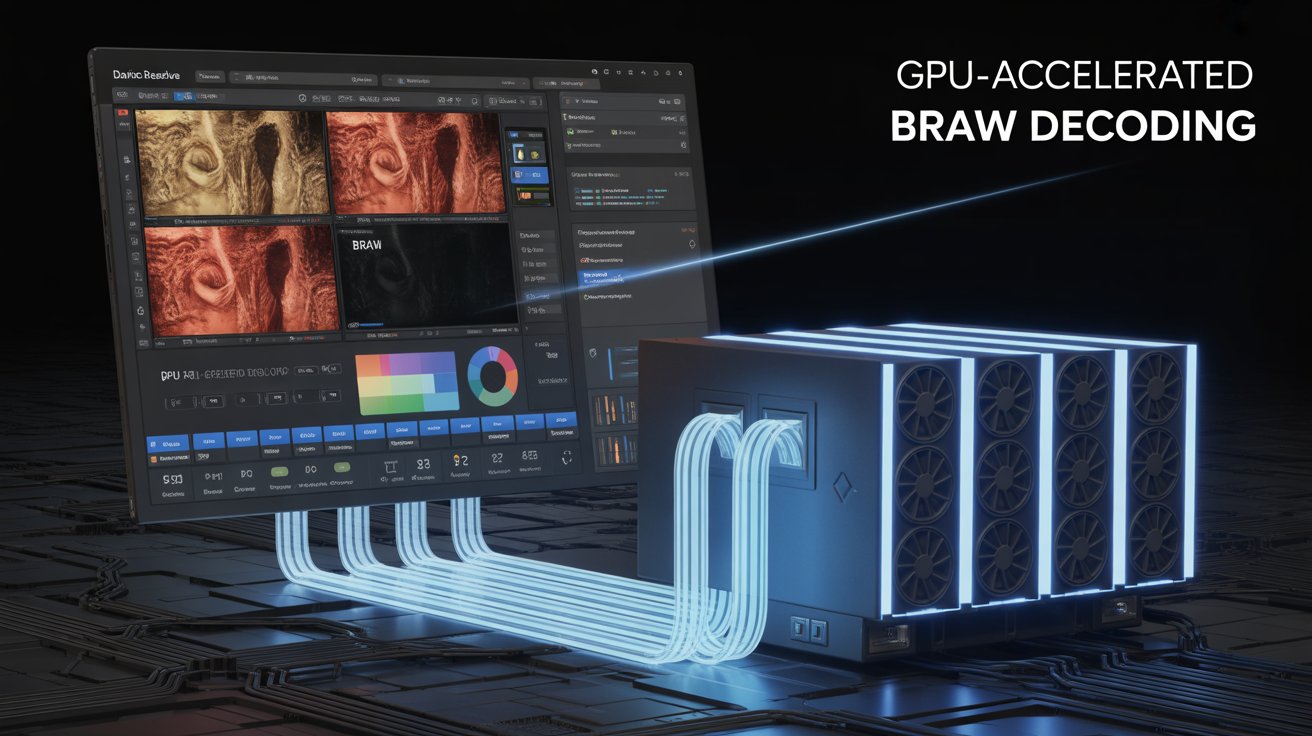
DaVinci Resolve (especially the Studio version) uses GPU acceleration by default for BRAW. It detects your GPU and uses it to decode, render, and debayer footage.
Key Benefits:
- Smoother Playback: Fewer dropped frames
- Faster Colour Grading: RAW data is processed quickly
- Lower CPU Usage: System runs more efficiently
- Faster Exports: Timelines render quickly
Why Is My BRAW Footage Lagging?
Lag happens when GPU acceleration is not enabled or the system is not strong enough. Old drivers, HDD storage, or heavy effects can also slow performance.
Common Causes:
- Weak or outdated GPU
- Slow hard drive (HDD instead of SSD/NVMe)
- Old GPU drivers
- High preview resolution
- GPU acceleration turned off
- Heavy grades or noise reduction
Tip: Lower playback resolution temporarily for smoother editing.
How to Enable GPU Acceleration for BRAW:
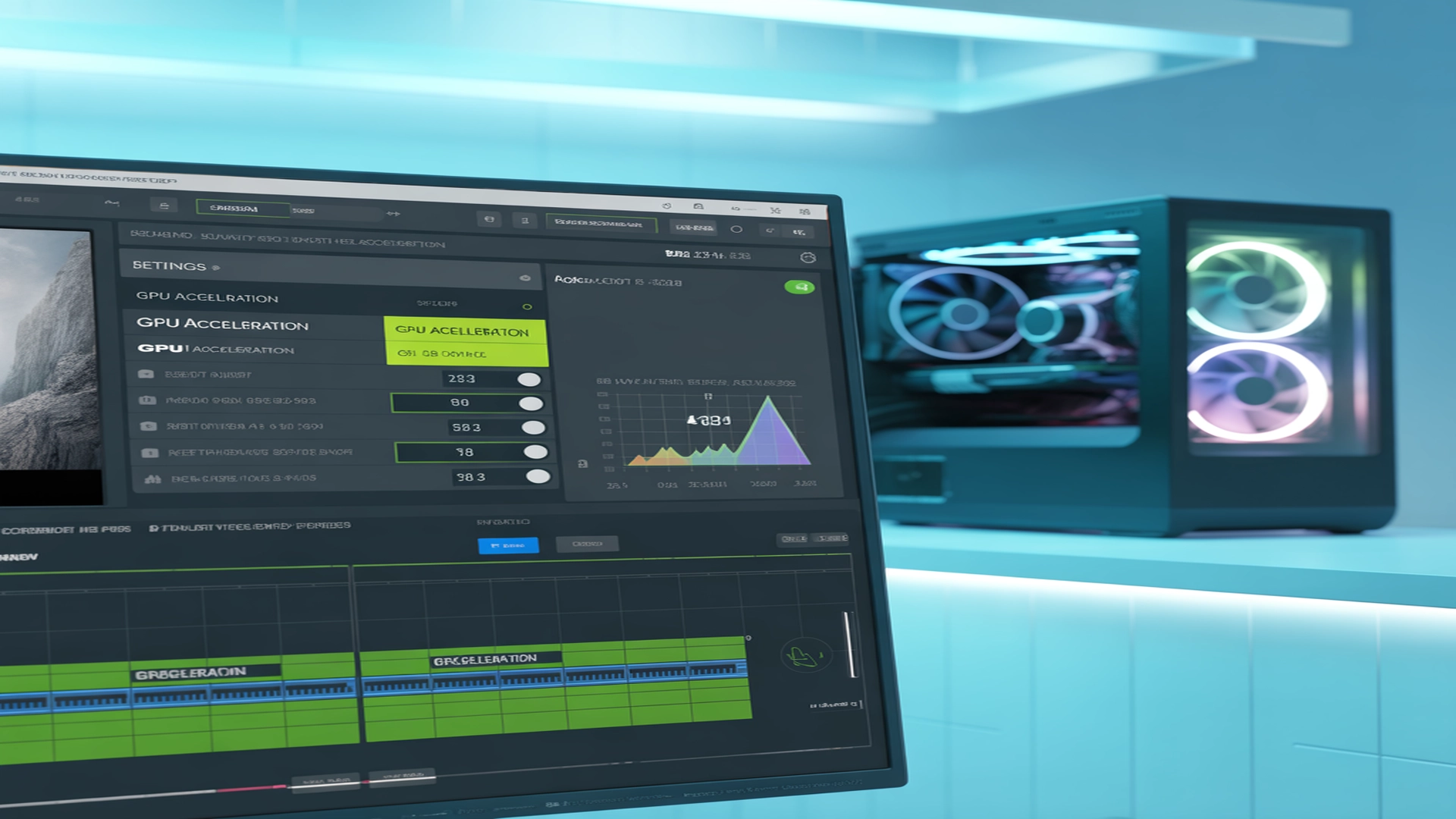
Turning on GPU acceleration lets your graphics card handle playback and processing, reducing lag and improving speed.
Steps to Enable GPU Acceleration:
- Open your editing software’s Preferences/Settings
- Go to the GPU, Hardware, or Performance section.
- Select your GPU (NVIDIA, AMD, or Apple Metal)
- Enable GPU Acceleration or Hardware Decoding
- Save settings and restart the software.
- Test with a BRAW clip.
Extra Tips:
- Keep GPU drivers updated
- Resolve Studio supports multiple GPUs
- Use high-performance power mode.
Example: In DaVinci Resolve, GPU decoding can dramatically improve 4K and 6K playback.
Does Premiere Pro Support BRAW GPU?
Yes, Premiere Pro supports GPU acceleration for BRAW footage, but only when hardware-based rendering and decoding are turned on. If GPU support is inactive, the CPU handles everything, slowing down playback and exporting.
To get smooth performance, follow the same setup steps explained in the “How to Enable GPU Acceleration for BRAW” section.
How Fast Is BRAW GPU Decoding?
GPU decoding can make editing 2× to 5× faster than CPU-only processing. Performance depends on your graphics card and video resolution.
Performance Insights:
- 4K BRAW: Up to 3× faster playback
- 6K / 8K: Much smoother with a dedicated GPU
- Real-time editing: Possible on mid-range GPUs
- Multi-GPU: Supported in Resolve Studio
Always enable GPU decoding in Preferences.
What Is the Best GPU for Editing BRAW Footage?
The proper GPU depends on your resolution and workload. More VRAM and faster hardware give smoother editing and quicker exports.
Recommended GPUs:
| Editing Level | Suggested GPU | Notes |
| Beginner / 1080p | RTX 3060 / AMD RX 6600 | Good for basic editing |
| Intermediate / 4K | RTX 4070 / RX 7800 XT | Smooth 4K workflows |
| Professional 6K–8K | RTX 4080 / 4090 | Best for grading and layers |
Expert Tips:
- Use NVIDIA Studio Drivers
- 12GB+ VRAM helps with large files
- SSD or NVMe drives improve scrubbing
Can an Integrated GPU Handle BRAW Footage?
Integrated GPUs can manage light 1080p edits but struggle with 4K and above. They don’t have enough power for heavy RAW decoding.
What to Expect:
- Works only for light 1080p projects
- 4K and above will stutter
- Rendering is slow
- Limited GPU decoding
Even a mid-range GPU like the RTX 3060 gives a significant boost.
FAQs:
1. How does GPU acceleration help BRAW performance?
It lets the GPU handle decoding, which reduces CPU load and improves playback speed.
2. Does BRAW use CUDA or OpenCL?
NVIDIA uses CUDA, and AMD uses OpenCL.
3. Do I need a strong GPU for BRAW footage?
Yes, mid to high-end GPUs are best for 4K and higher.
4. Is GPU acceleration available in the free version of Resolve?
Yes, but Studio has better performance and multi-GPU support.
5. Does Premiere Pro support native BRAW GPU decoding?
No, you need the Blackmagic RAW or BRAW Studio plugin.
Conclusion:
Yes, BRAW fully supports GPU acceleration, and performance improves significantly when the graphics card handles decoding and rendering. With GPU support enabled, you get smoother playback, faster exports, and better performance in programs like DaVinci Resolve and Premiere Pro. This makes high-resolution editing more efficient and saves you time in post-production.